Digital Safety · All ages · 9 min

Parental controls: how to set up your kids' devices, one by one

You don't need to buy anything or be a tech expert: the main parental control features are already built into the devices your kids use every day — and they're free. This guide shows what exists, where to find it and how to think about each tool by age.

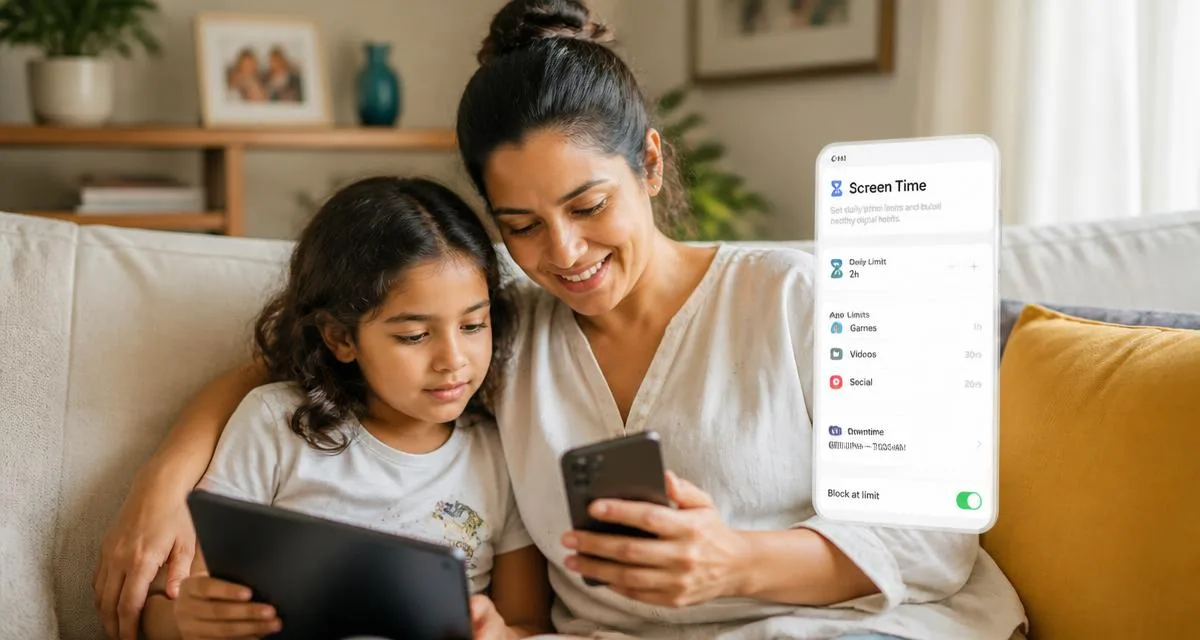
Mother and daughter on the sofa adjusting parental control settings together on a phone and tablet
Parental controls work best when the child knows they exist: set them up together, explain why, and review them regularly.
Before you start

Settings support agreements — they don't replace conversation

One important ground rule before diving into settings: parental controls work best when the child knows they exist. Hidden monitoring usually backfires — it erodes trust and teaches kids to hide things instead of telling you.

Conversation is always the first tool; settings are there to hold up the agreements your family made together.

📱 Phone and tablet

Start with the device that's in their hand all day

Android — Google Family Link

Free. Creates a supervised Google account and lets you, from your own phone, set daily and per-app time limits, approve or refuse every Play Store download, filter Chrome and YouTube, see the device location and lock it at bedtime. Under 13, the supervised account is mandatory — and it's what activates stricter filters across all Google services. Setup takes about fifteen minutes.

iPhone and iPad — Screen Time

In Settings → Screen Time, far more powerful combined with Family Sharing. Downtime, limits by app or category, content restrictions by age rating, purchase and download approval, and communication limits. Protect it with a passcode different from the unlock code (and from birthdays kids guess fast).

💻 Computers

Windows, Mac and Chromebook

Windows — Microsoft Family Safety

Free, manages child accounts on Windows and Xbox: device time limits, site and search filtering in Edge, activity reports and Microsoft Store purchase approval. Set it up at family.microsoft.com by creating the child's account inside your family group.

Mac — Screen Time

The same system as the iPhone exists on macOS, with the same limits and restrictions, managed through Family Sharing.

Chromebook — Family Link

Controlled by Family Link itself, with the same supervised-account rules as Android.

🎮 Game consoles

Consoles are also a browser, a store and a social network

Often forgotten, but all of them have robust, free parental controls.

Nintendo Switch

The Nintendo Switch Parental Controls app (on the parent's phone) sets daily play time, restricts games by age rating and blocks communication with other players. When time runs out the console warns — and can suspend the game.

PlayStation

Family Management (on the console or Sony's website) limits play time, restricts games by rating, controls chat and disables purchases. Each child gets an account linked to the parent's.

Xbox

The Xbox Family Settings app puts everything on your phone: screen time, age filters, extra-time requests your child sends for approval, and weekly usage reports.

▶️ Apps and services

Where they actually spend their time

YouTube

For younger kids, YouTube Kids: a separate app with filtered content, age-based profiles and the option to approve channels manually. From 9–12, regular YouTube can be used with the supervised experience of a Family Link account, which applies three levels of content filtering and disables comments.

Netflix and other streamers

Create a kids profile with a set age rating and — the step most people skip — protect adult profiles with a PIN. Without the PIN, the kids profile is just a suggestion. Disney+, Prime Video and Max have equivalent features.

Roblox

In parent settings you can link your account to your child's, choose who they can chat with, restrict experiences by age, limit time and disable chat entirely for younger kids. Review often — the platform updates these options a lot.

Discord

Minimum age is 13. The Family Center lets you see, with the teen's consent, which servers they joined and who they interacted with — without reading message content. Finish the job in their privacy settings: direct-message filtering on, messages from strangers blocked and friend requests restricted.

Instagram

Teen accounts default to private, with restrictions on messages from strangers and limits on sensitive content; supervision lets parents follow usage time and the following list. Still, the minimum age of 13 exists for good reasons.

TikTok

Family Pairing links your account to your teen's to set screen time, restrict content, control who can message them and turn off search.

WhatsApp

Honest answer: there's no native parental control. What you can do is tighten privacy settings (photo, last seen and group adds limited to contacts) and, above all, agree on family rules about groups with strangers. For younger kids, many families delay WhatsApp and use supervised alternatives such as Messenger Kids.

📶 Home network

Two extra layers that protect every device at once

  • Turn on Google SafeSearch and YouTube restricted mode in the browsers at home.
  • Use your router's parental control (or your provider's app) to block site categories and cut internet to specific devices at set hours — the 'no internet after 9pm' rule enforces itself.
  • Free family DNS services such as OpenDNS FamilyShield or CleanBrowsing do similar filtering by changing a single router setting.
💳 Paid apps

Are subscriptions worth it?

For most families, the built-in tools are enough. Paid services — Qustodio, Norton Family, Kaspersky Safe Kids — make sense in specific cases: homes with many devices across different systems you want in one dashboard, a need for detailed reports, or finer browsing filters.

Before subscribing, trial it for a month and check that the app is transparent about what it collects and complies with your local privacy law. Be wary of any service that sells itself as 'invisible' or promises to read all your child's messages: beyond being ethically delicate, total surveillance tends to break exactly the trust that actually protects.

📅 A guide by age

What makes sense at each stage

Under 5

Screens only with an adult present, on the parents' devices and with kids profiles (YouTube Kids, streaming kids profile).

6 to 9

If they have their own tablet or phone: a fully supervised account (Family Link or Screen Time), approval for every download and no social media.

10 to 12

Keep the controls, with slightly looser limits negotiated in conversation, games with chat off or restricted to real friends, and still no social media.

13 and up

Supervision shifts from blocking to accompanying: Instagram supervision, TikTok Family Pairing and Discord's Family Center allow presence without reading private conversations.

The essentials

What no setting can replace

A good tool supports a relationship; it doesn't replace one. Three habits are worth more than any app: reviewing settings together with your child every few months (devices change, kids grow); keeping the golden rule that they can tell you about anything that scared them online without losing their phone; and modelling your own relationship with screens.

Parental controls protect against the risks we can predict — conversation protects against all the others.

Quick checklist

Do this today, in under an hour

This content is informational and does not replace professional guidance. Menus and setting names change as devices and apps update.

Veja também

Keep exploring

More on organising your family's digital life.

More reading on the same topics.

See all articles →

Receba atividades novas toda semana.

Sem spam. Só ideias boas para você e seu pequeno.